Analyze Source
A Check does two things when you press it: it compiles, and it scans your source code. Analyze Source runs only the scan, and its findings are added to the compiler's rows on the Analyzer tab.
It reads your source files directly and reports obsolete DataFlex commands, functions, classes and symbols. No compile is needed. Much of this code compiles without any messages, so the compiler does not report it, and the rest is found here without waiting for a compile.
What it finds
- Obsolete commands — Calc, Chain, Cmdline, Gosub, the Type/End_Type buffer family, and the string commands (Left, Mid, Pos, Trim...) that are obsolete only when they are used as commands.
- Legacy comparisons — EQ, NE, GT, LT, GE, LE, IN and MATCH on an If / Else / While / Until line, plus the two-word If Not form.
- Retired API families — registry and profile-string commands, embedded SQL, database-attribute commands, character-mode UI and printing.
- Obsolete classes — objects declared as DfTimer, Grid, dbGrid, List, dbList, Edit, dbEdit or WinReport, and subclasses of them.
The scan looks at how a word is used: Left(...) as a function is never reported, but Left as a command is. Comments and strings are ignored.
Starting a scan
- Check on the dashboard (the text below it says "compile + analyze") first scans the source code and then compiles, when you press it once. It includes the folders selected with Select Folders, or every source folder in the workspace if none are selected, and does not ask you to confirm the folders.
- Analyze Source, on the bar with Compile, Analyze and Run Plan, runs only the source scan. It is enabled when the compiler has nothing more to report, and when you are viewing a scan that you want to repeat. It asks you to confirm the folders first, and suggests the workspace's AppSrc folder if none are selected.
Within a session, a repeated scan reads only the files that have changed, so later scans are much quicker. After the program is restarted, all files are scanned again. If you cancel the scan, no results are loaded: "Analyze Source cancelled - no results loaded."
Choosing what is searched for
Analyze rules opens Analyze Source - Rule Selection. It lists everything the scan can search for, and it is worth looking at before the first scan. It also shows clearly what DFRefactor considers obsolete.
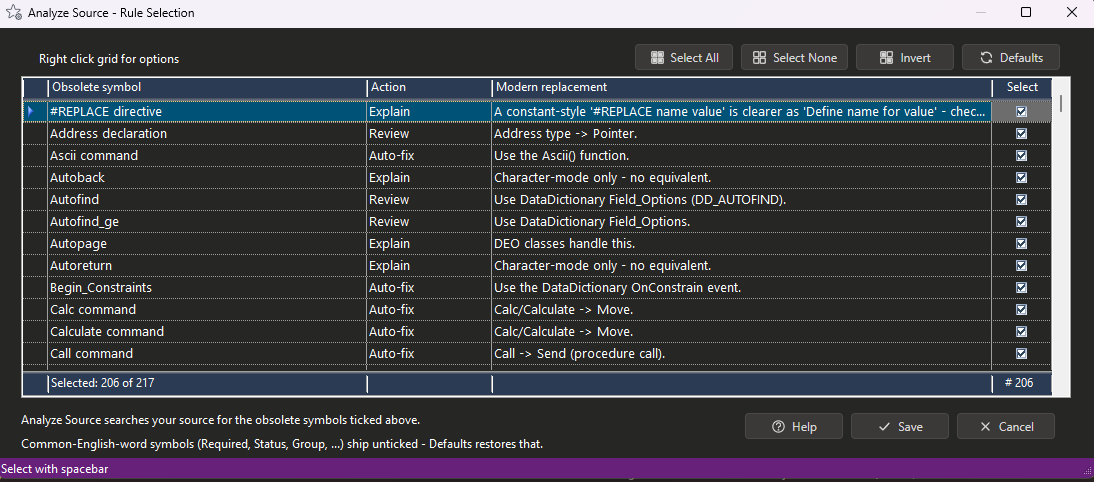
Each row is one rule:
- Obsolete symbol — the legacy command, function or symbol the rule matches.
- Action — what happens when the rule finds something. Auto-fix: a converter rewrites it. Review: a converter or a report handles it, but you should check the result. Explain: no converter exists, so the finding tells you what to do by hand.
- Modern replacement — what to use instead.
- Select — whether the scan searches for it. Click the box, or press the spacebar on the current row.
Most rules are Explain or Review rather than Auto-fix, as the picture above shows. This is intended: much legacy DataFlex code cannot be converted automatically without making decisions for you. In those cases the scan finds the code and tells you about it, instead of guessing.
The bottom of the list shows how many rules are selected (Selected: 206 of 217 in the picture).
Rules that are off by default. Eleven rules are not selected by default. Most are symbols whose names are ordinary English words — Required, Retain, Status, Group, Fill, Points, Suppress, Thousands — which would match a lot of correct code. The rest are context-dependent: FindErr, LastErr and Windowindex are valid in code that has not been migrated yet, so reporting every occurrence would hide the important findings. Select them when you are ready to deal with that kind of code.
Saving. Select All, Select None, Invert and Defaults only change the selection in the list. Nothing is saved until you press Save, and Cancel keeps your previous selection. Defaults restores the original selection, including the rules that are off by default. When you change the selection, the next scan reads every file again, because the saved results no longer match the new selection.
The findings
They are shown on the Analyzer tab together with the compiler's messages — see Analyzer — marked DS and a number in the Msg# column, with the same Fix, Suggested fix and Refactor function columns.
Analyze Source does not change anything itself; the changes are made by the plan that you create with Run Plan. Fixing some findings reveals new ones, so scan, run the plan and scan again until nothing more can be fixed. See Refactoring Functions.