Editor Settings
The Editor Settings dialog (Tools > Editor Settings..., or Alt+D) contains the settings of the Scintilla editor in the Editor view. The refactoring functions of the Editor type (EditorReIndent and EditorNormalizeCase) use this editor, so these settings directly affect their result.
The dialog has four tabs — Color/Font, Language, Keyboard and Misc — which are described below.
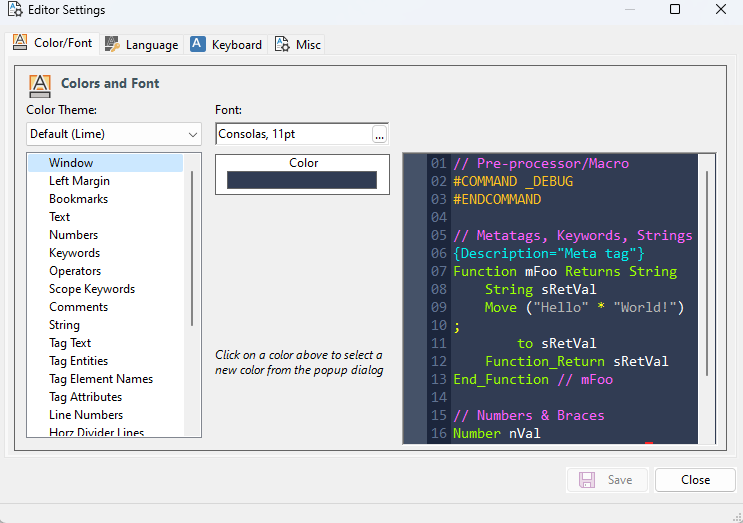
Colors and Font
On the Color/Font tab. Choose a color theme for the editor, or set individual colors per syntax element. Click the ... button next to the Font: control to select a font.
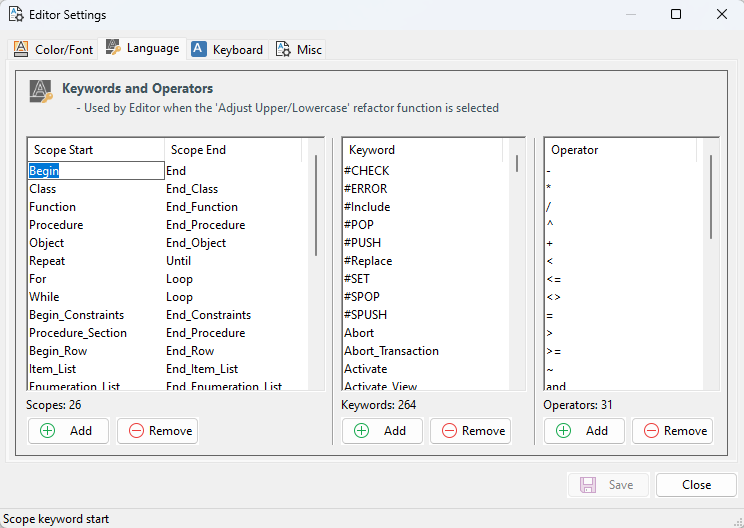
Keywords and Operators
On the Language tab. Three editable lists:
- Scopes — Start/End pairs such as Begin/End, Object/End_Object
- Keywords
- Operators
These lists are read when the program starts, and the refactoring engine uses them. Changing them has a large effect on the refactoring result, because the way the code is read, and the way keywords are written, depend on these lists.
Caution: change these lists only when you understand the consequences. A typical reason to edit is to add a custom command to the Keywords list so that it is treated as a keyword during refactoring (for example, normalized to the casing used elsewhere in your codebase).
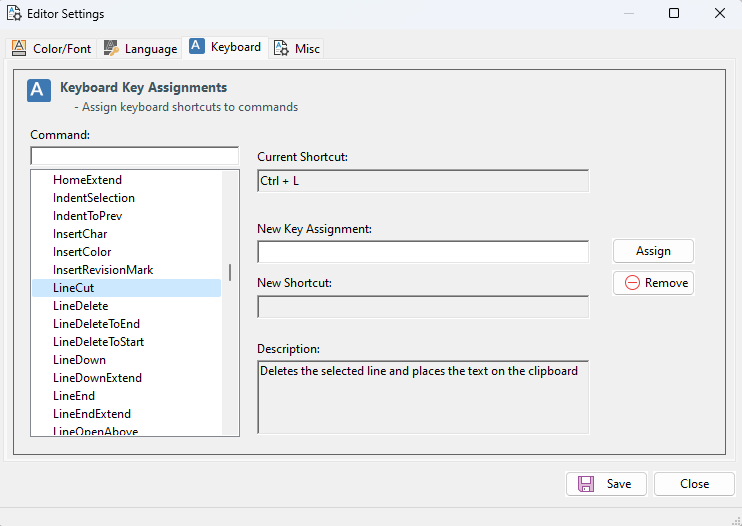
Keyboard Key Assignments
On the Keyboard tab. Sets the keyboard shortcuts of the Scintilla editor. This editor is separate from the DataFlex Studio's editor, so its shortcuts are set separately. Use this tab to make the shortcuts as similar as possible to the ones you use in the Studio.
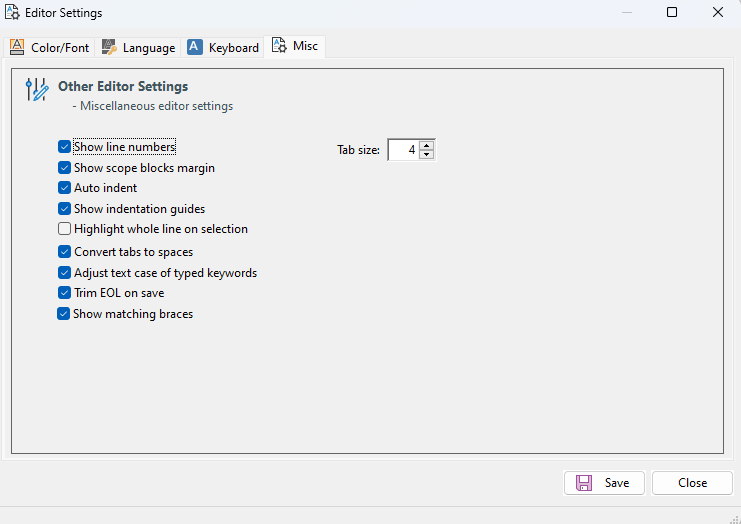
Other Editor Settings
On the Misc tab. Other editor settings, such as Show line numbers. Point to a check box to see an explanation.
Tab size. The number of spaces used for each indent level. This setting is important for EditorReIndent, which uses it to indent the code. The same value can be set in Select Functions: find the EditorReIndent row, double-click its Parameter column, and choose a tab size between 1 and 8 (the default is 4).